Triage Issues
Mark which issues someone is fixing, which are fixed and which are noise, so every review starts where the last one ended.
Reporting API App groups reports of the same problem into one issue. The issue is the unit of work: reports are occurrences. Each issue carries a state, an optional assignee, a history of who changed what, and notes your team writes. Anyone who can see an issue can change all of them: organization owners, and app admins and members of the issue's app.
States
Every issue is in one of four states. A new issue starts open.
| State | Use it when |
|---|---|
| Open | Nobody has looked at it yet, or it needs another look |
| In progress | Someone is working on a fix |
| Resolved | The fix has shipped |
| Ignored | It is noise you won't fix, and no noise rule covers it, for example a third-party widget you can't change |
Two states change what happens to new reports:
-
Resolved issues come back when the fix didn't hold. What a new report does depends on whether it
names a release:
- From a release first seen after the issue's last seen release, it opens a new issue linked to the resolved one. Both issue pages link to each other, so you see that this is a regression.
- From the issue's last seen release or an older one, it counts toward the resolved issue and changes nothing: that release still has the bug.
- Without a release, or for a network error, it reopens the issue when it occurred after you resolved it. A report the browser generated before you resolved the issue, and sent late, doesn't reopen it.
- Ignored issues stay quiet. Their reports are still stored and counted, but they send no notifications to your notification targets.
Change the state and assignee
- Open the issue from your app's Issues list.
- In the Workflow card, pick a State and an Assignee, then select Save. Assign to me assigns the issue to you in one click.
You can assign an issue to anyone who can see it. When someone loses access to the app or leaves the organization, their issues become unassigned.
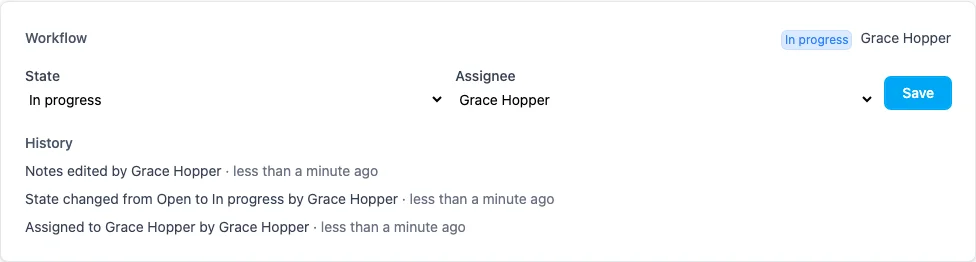
History
Below the form, the History lists the latest changes with who made them and when: state and assignee changes, notes edits, reopens by a new report, and changes made when duplicate issues were merged. Changes made by an AI assistant over MCP carry the name of the person who connected it.
Notes
Notes record what the next person needs to know: why an issue is ignored, its root cause, or the merge request that fixed it. The Notes card shows who edited them last and when.
- On the issue page, select Edit notes in the Notes card.
- Write your notes in Markdown and select Save notes. Clear the text to remove them.
-
Markdown: headings, lists, emphasis, code, tables and links. HTML is not rendered, and only
http,httpsandmailtolinks are kept -
Link a report: write
report:<id>with the report's ID to link it; only reports of your organization become links. A pasted URL, the report's own included, becomes an ordinary link - Length: up to 10.000 characters
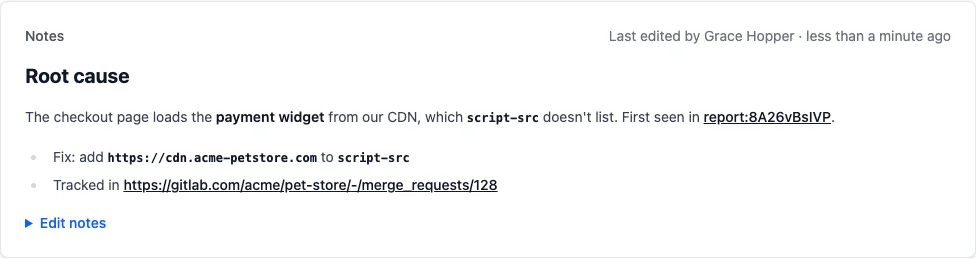
When duplicate issues are merged into one, it combines their notes, newest first, each under the ID of the issue it came from. Identical notes are kept once, and the combined text is cut at the 10.000-character limit.
Filter the issue list
The Issues list shows each issue's state and assignee. Next to the type filter, filter it by:
- State: one of the four states, or Unresolved for open and in-progress issues
- Assignee: Assigned to me, Unassigned, or a member of your team
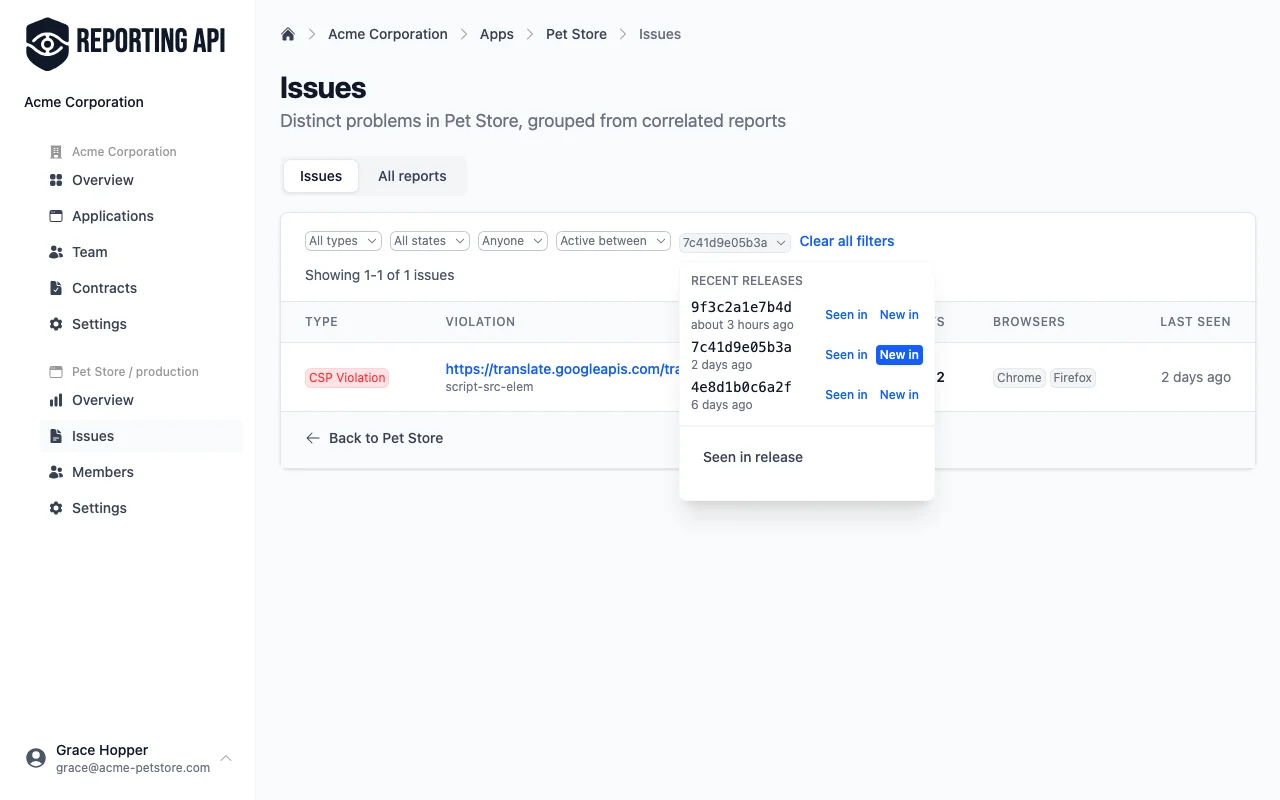
- Release: Seen in release lists the issues a release still shows, and New in release the issues it introduced
- Filtered: issues made only of known noise, such as scripts a browser extension injects, are hidden. Show filtered lists them; Noise Rules explains which reports we filter
Check what a release brought
When your reporting endpoint URL carries the deployed revision (add release context), every report names its release. Open Releases from the app page to see each release, newest first, with when it was first seen, its reports, the issues new in it and the regressions among them. The Received column counts every report the release sent, including noise and reports past retention.
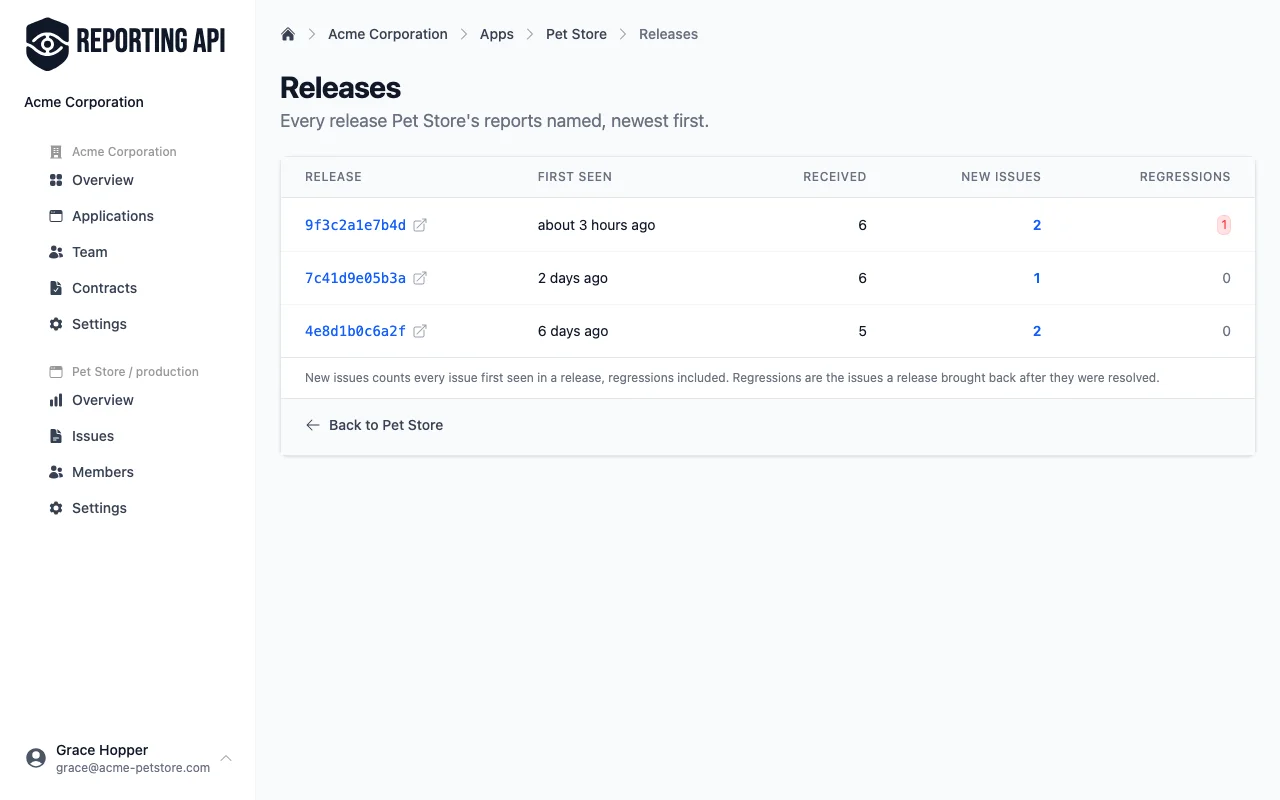
A regression is an issue a release brought back after you resolved it: a report from a release first seen after the fix opens a new issue linked to the resolved one. New issues count every issue first seen in a release, regressions included. With a release URL in the app's settings, each release links to its commit in your repository.
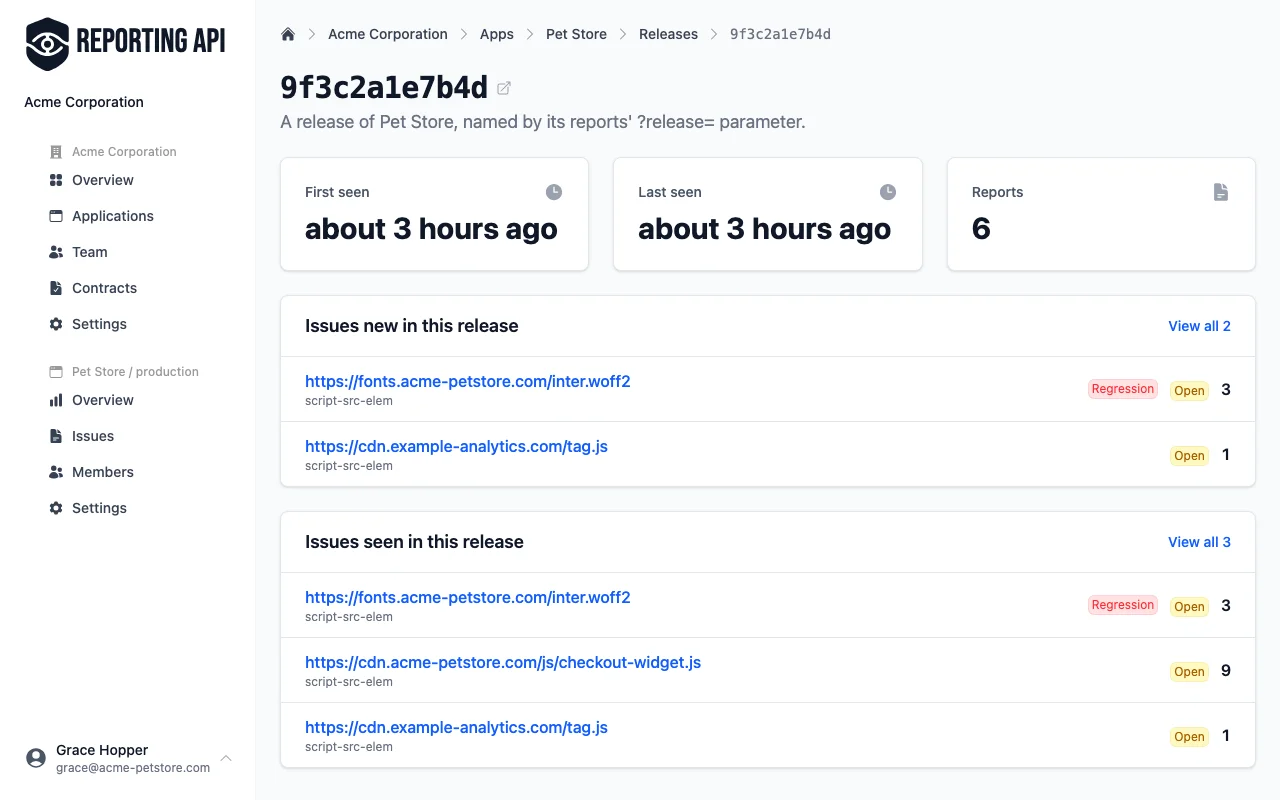
Open a release to see when it was first and last seen, its reports, and the issues new in it and seen in it. View all opens the issue list filtered to that release, and the Reports card its reports. Reports filtered as noise, such as those a browser extension caused, stay out of both counts and lists; the card names how many there are and links to them.
Filter the issue list by release
The release filter on the Issues list offers the app's five newest releases. Choose Seen in for issues that occurred in a release, or New in for issues it introduced. The other filters stay as they are. For an older release, type its revision into the fields below the list.
Triage with an AI assistant
Your AI assistant can do the same over the MCP server.
list_issues filters by state and assignee, get_issue returns the notes, and
update_issue sets the state, the assignee and the notes in one call. A typical loop: the assistant sets
an issue to in progress when it starts a fix, then resolves it with the merge request link in the notes when the fix
ships.
update_issue needs write access, which you grant when you connect the assistant. Every change it makes
appears in the issue's history under your name.